Excel Function of the Week - VLOOKUP & HLOOKUP


I realised that when I wrote the ISNA function article that I had never written an explanation of VLOOKUP. I want to write up explanations for a umber of other functions in the future like COLUMN, ROW, MATCH and INDEX followed by OFFSET. All these make lots of sense when you use them with the VLOOKUP function. So I though it best to start with this function. I will also say that everything I write about VLOOKUP here applies to HLOOKUP as well. the only difference is the orientation, that is VLOOKUP looks across columns from left to right, and HLOOKUP looks down rows from top to bottom.
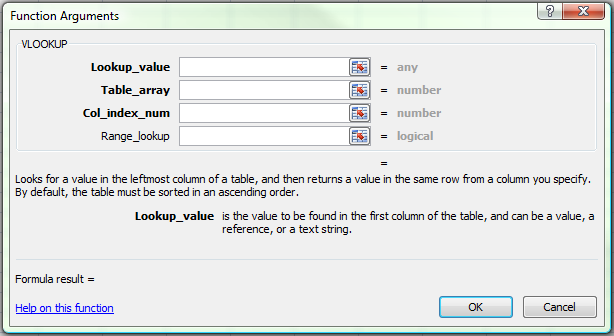
The built in Excel Help is very good at helping with this function. However it doesn't point out many of the pitfalls than occur in common use.
The VLOOKUP function syntax has the following arguments (argument: A value that provides information to an action, an event, a method, a property, a function, or a procedure.):
- lookup_value Required. The value to search in the first column of the table or range. The lookup_value argument can be a value or a reference. If the value you supply for the lookup_value argument is smaller than the smallest value in the first column of the table_array argument, VLOOKUP returns the #N/A error value.
- table_array Required. The range of cells that contains the data. You can use a reference to a range (for example, A2:D8), or a range name. The values in the first column of table_array are the values searched by lookup_value. These values can be text, numbers, or logical values. Uppercase and lowercase text are equivalent.
- col_index_num Required. The column number in the table_array argument from which the matching value must be returned. A col_index_num argument of 1 returns the value in the first column in table_array; a col_index_num of 2 returns the value in the second column in table_array, and so on.
If the col_index_num argument is:
- Less than 1, VLOOKUP returns the #VALUE! error value.
- Greater than the number of columns in table_array, VLOOKUP returns the #REF! error value.
- range_lookup Optional. A logical value that specifies whether you want VLOOKUP to find an exact match or an approximate match:
If range_lookup is either TRUE or is omitted, an exact or approximate match is returned. If an exact match is not found, the next largest value that is less than lookup_value is returned.
Important: If range_lookup is either TRUE or is omitted, the values in the first column of table_array must be placed in ascending sort order; otherwise, VLOOKUP might not return the correct value.
If range_lookup is FALSE, the values in the first column of table_array do not need to be sorted.
- If the range_lookup argument is FALSE, VLOOKUP will find only an exact match. If there are two or more values in the first column of table_array that match the lookup_value, the first value found is used. If an exact match is not found, the error value #N/A is returned.
Common Uses of VLOOKUP.
I use VLOOKUP frequently – many times a day and in many different ways. While I am aware that there are limitations to how it works (more on these soon) in the following circumstances it performs well.
Example: I have 2 columns of the same data from two spreadsheets – different versions or different data sources. I want to know if all the data is in both spreadsheets, and if not which data is missing from which sheet. Typical scenarios include account codes from an accounting system, names from a payroll system, lists of suppliers or customers, lists of gas wells from a an engineers data collection sheet etc.
The data may be several hundred or thousand lines long – and it is not time efficient or practical to scroll up and down the two lists comparing them. Sorting them doesn’t necessarily work, and if there are duplicates then looking at the total number in each list isn’t going to help.
Solution: I would copy and paste the two columns of data into column A of two separate sheets in a temporary work book (or maybe work with it in the source files and delete my work afterwards). IMPORTANT: I would then sort each list in ascending order.
In column B of Sheet1 I would make a formula like so: =VLOOKUP(A1,Sheet2!$A:$A,1,FALSE). After filling this down for each item in column A It is very easy to filter out all the #N/A items. These are the items that do not appear in column A of Sheet2.
In Sheet2 Column B I would write a formula like so: =VLOOKUP(A1,Sheet1!$A:$A,1,FALSE). After filling this down for each item in column A It is very easy to filter out all the #N/A items. These are the items that do not appear in column A of Sheet1.
Example: I am trying to balance a set of data that is being summarised from a source set using SUMIF formulas to group the data into some top level values. The sum of these subtotals should equal the sum of the original data.
Eg RAW Sales data totals compared with the sum of the sales data by Salesman suing the SUMIF formula does not equal for some reason. I have checked and every line of raw data has a salesman’s name against it and each unique salesman’s name is being included in the subtotals. Or so I think. In actual fact there is a typo and there are some sales mans names that have an extra space after the name, or maybe a couple of letters transposed. This is a very common error and not easily located in a set of data of several thousand rows. (see a previous post about this problem)
Solution: Assume the salesman’s names from the raw set of data are in column A of Sheet1 and the sales values are in column B. Column C is blank. Column A of Sheet2 is the subtotals of salesman’s names (appearing once) with the SUMIF subtotals in column B.
In column C of Sheet1 I would enter a formula that compares the salesman’s name from column A against the subtotal page on Sheet2 like so:=VLOOKUP(A1,Sheet2!$A:$A,1,FALSE). Once again after filling down for all the data in the raw data sheet, I can filter on this column and any #N/A values will highlight the problems – spelling mistakes, extra spaces, etc.
That’s enough for this week. Next week I will continue on with more on VLOOKUP and HLOOKUP – more scenarios of day to day use of them, and some of the common traps, including why sorting is important.


Site Construction and Maintenance by Jethro Consultants

Gidday
Glad to have you stop in.
I write about my family, the internet, technology and gadgets, productivity with Microsoft Office applications Excel Tips and more.
Instagram Feed
Find Us On...


Subscribe by RSS
Recent comments
- ill try to resolve that
10 years 23 weeks ago - When I initially commented I
10 years 23 weeks ago - What I would really like to
10 years 25 weeks ago - sure @spyjournal
10 years 25 weeks ago - Howdy! Do you use Twitter?
10 years 25 weeks ago - You really make it appear
10 years 25 weeks ago - Oh my goodness! Awesome
10 years 25 weeks ago - I think you have to do it via
10 years 25 weeks ago - When I originally commented I
10 years 25 weeks ago - go to hell india
10 years 25 weeks ago



Copyright Notice. All documents and text contained in this web site www.spyjournal.biz and sub pages is copyright material of Timothy Miller © unless noted as being copyright material of someone else. No public reproduction of the content on this site in any form is permitted without express written permission. Privacy Policy


Comments
Dear sir, Thanks for your
Dear sir,
Thanks for your information about Vlookup instruction.
but I have a question about this instruction , I have two columns that compound
of two rows make key for searching.
can I use of thses two columns for "vlookup" . the the first part vlookup instruction 'values '.
your early answer will be highly appreciated.
Thanks and best regards.
If I understand your question
If I understand your question correctly you want to find the result when searching using criteria from 2 columns not just one.
this is not possible using the vlookup function or the match or index function either.
It needs to be performed using sum product or an array function.
check out bobs website for that http://www.xldynamic.com/source/xld.SUMPRODUCT.html
also this might be helpful http://www.spyjournal.biz/node/475
I have a spreadsheet that I
I have a spreadsheet that I am trying to use the HLOOKUP function with. Basically I have created a pricelist where I have a list of suppliers at the top of the table (D4:K4) and a list of products along the side of the page (B5:B173). Through the middle, obviously are the different prices from all of the different suppliers.
On this page, I have used conditional formatting so that the cheapest price from each item is formatted green.
My problem is this. I have created a second spreadsheet where I have copied the list of products from column B.
Column C on the second spreadsheet will contain the minimum value for that item or row extracted from the first page (using the =MIN function).
What I then want to do is place the supplier name in column C. I have tried to use the HLOOKUP function for this using the following formula: =HLOOKUP(D4,'Price Comparison'!D6:K6,4,('Price Comparison'!D4:K4))
What the formula returns is #VALUE. I am assuming this is because the HLOOKUP function does not return text? When I go through the evaluation process it says the following =HLOOKUP(3.9,'Price Comparison'!D6:K6,4,Wellington)
(3.9 being the minimum value from that row and Wellington being the supplier in the title row) So I am assuming that it is almost working, yes?
How do I get that cell to return Wellington as the result of the function?
Hi Josh complex sounding
Hi Josh
complex sounding problem
Do you want to send me the spreadsheets - or a sample that recreates your problem? I'm having difficulties visualizing it.
Cheers
My work demands the use of
My work demands the use of Vlookup function and now I can use it easily. Thanks for simplified information.
Hi I have two excel files and
Hi
I have two excel files and one "Raw" file and other "Validated" file. I am extracting the data from SQL database to raw file which is linked with validated excel file.
Now, I have to generate the data everyday. The validated excel file has column divided into different date columns.
My query is working fine but results goes to only dedicated column of validated excel file. What I want is to generate the report each day and I want excel to publish the data in the validated excel file date wise (Column Wise). I want to keep the old data as well. I mean data should go to the next column everyday from Raw file because raw file is generated everyday.
Query: =IF(ISNA(VLOOKUP(C3,'W PC LAB GUARD SAFETY CAB.xls'!Results,2,FALSE)),"",(VLOOKUP(C3,'W PC LAB GUARD SAFETY CAB.xls'!
Please help me...
I don't know whether I made myself clear.. but I need help, Please
regards
Imran
i think I know what you want
i think I know what you want Imran. However best to email me directly and we can talk though your problem and the best solution to it.
Cheers
Hi, thanks for explanation!
Hi, thanks for explanation! This tutorial also helped me much to understand how vlookup works:
http://www.myhowtoos.com/en/excel-howtoos/84-how-to-match-values-in-exce...
Dear Sir/Mam I want to know
Dear Sir/Mam
I want to know how we can create full employee master in excel file by vlookup function.
show result like:-
put the emp no. & get full information for that employee.
Hi Aakash The solution when
Hi Aakash
The solution when using a table with all the details you are wanting to find and then use vlookup is to make sure you have a unique identifier in the first column. This could be a employee number as you suggest.
So the table would be emp no, last name, first name, etc
the vlookup would focus on the emp no and then return the column you are looking for.
the best way to make that happen is to use a match function on the column heading to return the index no of the column and use that as the column no in the vlookup function.
hope this helps
Hello, I need help, I have
Hello,
I need help, I have a spread sheet with title on top and on the side numbers.
I need a formula that will look at the spread sheet and bring the exact amount for that line..
Example:
Items A1 A2 MRB Floor
XXXXX 54 200 20 500
need to take in consideration the Title on top then look for the item
Please help thanks
i am afraid i need more
i am afraid i need more detail and a little clearer explanation to help you. you can try emailing me the spreadsheet with what you are trying to do if you like.
tim at spyjournal dot biz.
Cheers
how i insert image with
how i insert image with vlookup function
unfortunately you cant
unfortunately you cant
Hello. I am having
Hello. I am having difficulties with HLOOKUP... specifically, I have a table at the top of my excel sheet and I am trying to create a value for each of my rows depending on the table. The formula works perfectly =HLOOKUP(Q7,G1:M2,2) But, when I try to fill in the formula on subsequent rows, it shifts the reference for the table at the top: =HLOOKUP(Q8,G2:M3,2). I am trying to figure out how to fill the formula downward and get it to keep the table reference the same: =HLOOKUP(Q8,G1:M2,2)
Any ideas???
Thanks so much!
lock the reference to Q7 with
lock the reference to Q7 with $
Eg $Q$7 will lock it for every reference - or Q$7 will lock it for rows only
Cheers
Yeah but i am also trying to
Yeah but i am also trying to put it in excel but, when I try to fill in the formula on subsequent rows, it shifts the reference for the table at the top: =HLOOKUP(Q8,G2:M3,2) or maybe we can use a match function on the column heading to return the index no of the column and use that as the column no in the vlookup function
Thanks for the great
Thanks for the great explanation of VLOOKUP Jethro, much appreciated!
Can I use vlookup with
Can I use vlookup with images? For example, say I have a sales history for a snickers candy bar, and in the third column, I have a picture of the candy bar. Is there any way to use vlookup in another page or workbook to pull up the picture?
Hi Sean i cant say i have
Hi Sean
i cant say i have ever thought of that. the answer would be no as the object is not actually in the third column as such its placed on the workbook and not in it.
however
you could use a form and some vba trickery to do it. eg select from a drop down box and then the image associated with the selection could appear.
likewise you could do it with file names and have an object that displays the selected filename - and the filenames could be contained in the third column.
let me know how you go
Cheers
Tim
Excel is amazingly helpful
Excel is amazingly helpful for small businesses if owners or other employees knows all of the functions.
thank you for the page that
thank you for the page that provides a lot of information..I think I'll enjoy while surfing on the pages..Thanks..
Excellent post.....I really
Excellent post.....I really appreciate this site...thanks again.
We are purchasing one item
We are purchasing one item from two supplier. how to find the two supplier if i select that product in excel?
Repeating results--1st line
Repeating results--1st line of lookup.
I set set up a simple worksheet with vlookup formulas. My vlookup formulas have been working fine up until today. Now when I copy and paste the vlookup formula using the same worksheet, it repeats the same result. It is the 1st line of the lookup table. Please note that nothing has changed in my worksheet.
Please help. I am at my wits end here.
Thanks...Rich.
Hi Rich Its a bit hard to
Hi Rich
Its a bit hard to tell without seeing it. do you have any absolute references (using $ ) in the original formula?
Vlookup and Hlookup issue
Vlookup and Hlookup issue ...or anything new which may help me..
Sir at present I am facing a big challenge given by my boss.
The problem is like this there is one sheet in which i am using one row for all CC(cost center codes) and one column for all expenditure codes, Now my system is generating one data which says like this ..
Expenditure code - And in each Expenditure code which cost center had used those materials and how much . As there are many Cost center (For example Diesel which is used by many cost center and so in one Expenditure code diesel there are many cost center ) likewise it goes on ..
Now the issue is how will I use Vlookup and Hlookup both or any other way so that all data can be linked by the sheet generated by system..
For any more doubt I can send you the Excel sheet..
Thanks and regards
Navneet
navneet33066@gmail.com
Hi, i am trying to make
Hi,
i am trying to make timesheet and i want to do separate hours like if someone work on monday to friday it goes to normal hours, if someone work on friday midnight to sat midnight it goes to satuarday and if some one work on saturday midnight to monday morning 6am it goes to sunday rate.. can you let me know how can i put formula over there..
thank you in advance,
kind regards,
Bhavin
Hi, I am trying to make in
Hi,
I am trying to make in sheet1 separate different customer wise pending payment details in sheet2, like if i enter the customer & invoice no. remaining details should come like qty, Invoice amt. everything if it's possible please help me out on this..
thank you in advance,
Purushotham
i am sorry i really cannot
i am sorry i really cannot understand what it is you are looking for.
I will answer questions on the functions. if you need consulting help we can provide that at a cost of $100US per hour
In Sheet2 in column BI would
In Sheet2 in column BI would write like this formula: = VLOOKUP (A1, Sheet1 $ A: $ 1, FALSE). After fill out a this is very easy to filter out all the # n / A Project. These items are not a column in Sheet1.
Thanks for this post and for
Thanks for this post and for sharing these important functions in Microsoft Excel.
Cheers!